How to add calendar events from text messages on iPhone
Turn a message into a calendar event and check the details before you save.
A dinner invitation in Messages already has most of what you need for a calendar event. The trick is getting the date, time, and address into your calendar while the message is still in front of you.
Start with the date in the message
If iOS recognizes a date or time in Messages, tap the highlighted text and look for the option to create an event. Check the title and location before saving. This works well for a clear, self-contained date.
Share a full invitation to Only Calendar
- In Messages, copy the invitation. If the app you are reading in lets you share selected text, you can share it directly to Only Calendar.
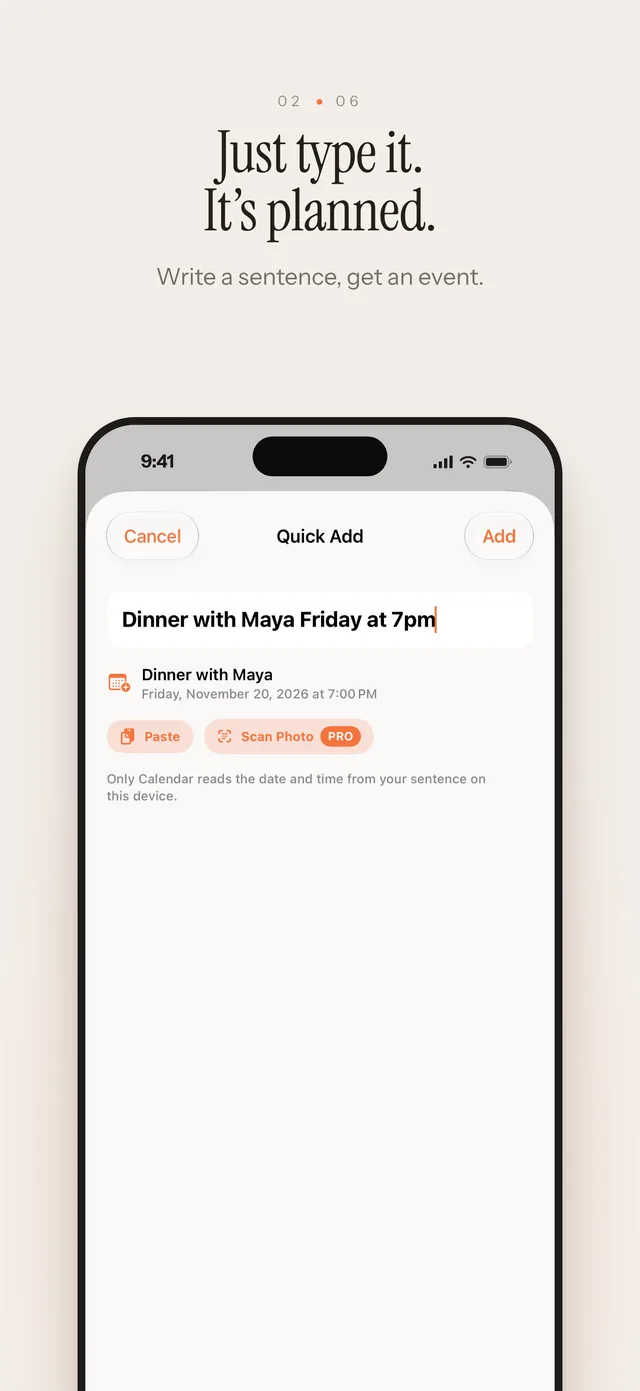
- For copied text, open Only Calendar and paste it into Quick Add. Include the sentence with the address if the invitation has one.
- Review the suggested event, check the destination calendar, and save it.
Suppose the invitation says “Dinner with Maya next Friday at 7 pm at 24 King Street.” Check the actual date if you received the invitation a few days ago. For remote meetings, confirm the time zone with the organizer. Add a reminder if you need travel time.
When the confirmation is a screenshot
Only Calendar can create an event from a shared photo. Review the result against the original image, especially for tickets with separate doors-open and start times.